Step 1
Fill your email address – Email verification
Open China Region Account Registration Page
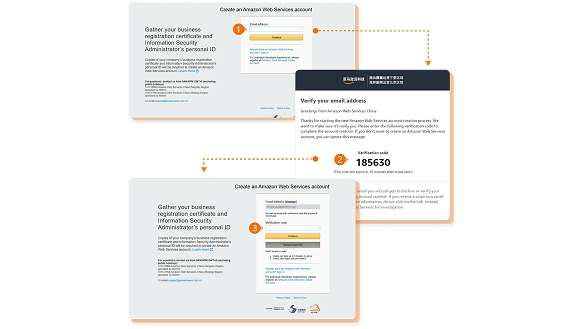
- Fill your registration email address
- Check your registration email Open the mail from here.
- Input the verification code in the email, and click “Continue”
Note: The display language of the link above is associated with your web browser language but you can change the language for input in the registration fields.
Step 2
Set up user name - Set up password
Set Up User Name and Password
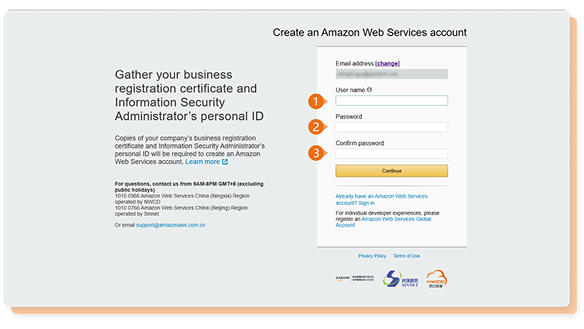
- Set up user name *Eg:webchina
- Set up the account password
- Repeat the account password
Step 3
Fill in the name - Fill in the contact number - Fill in the company name - Fill in the office address - Choose whether to require an invoice - Click to view customer agreement
Complete The Account Information
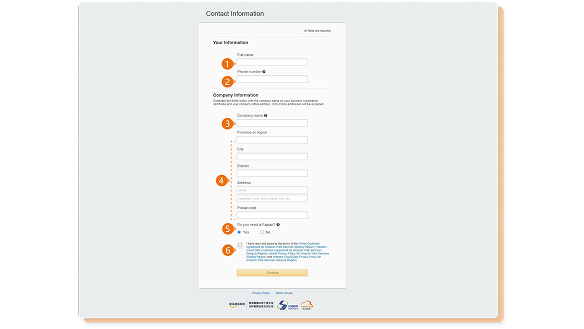
- Full company contact person name
- Full company contact person phone number
- Fill in the company name (*Important!!! Please fill in full name of the registered company entity)
- Fill in the company office address (Province/Autonomous Region/Municipality - City - District - Street number and floor information - Postal code)
- Please choose whether you need an invoice (*Refer to Attachment-Fapiao for fapiao application)
- You can click to view the customer agreement (Check the box to indicate that you have readand agree to the terms of the Customer Agreement)
Step 4
Upload business license - Fill in the name of the person in charge - Fill in the contact information - Upload ID
Business Information Validation
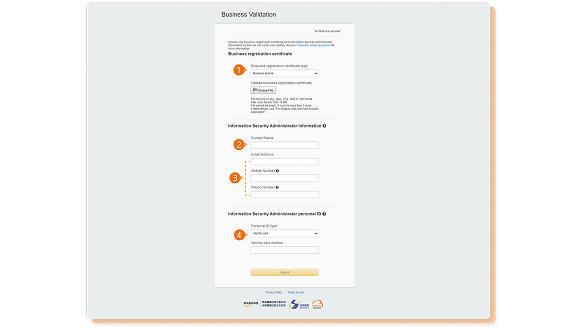
- Upload here Business registration license
- Head of cyber security name (Note that:The name should be consisted with name on the identity document)
- Head of cyber security contact details (Valid Email Address - Valid Mainland China Mobile phone number - Landline number (if there is no landline, please fill in Write a correct and valid mobile phone number))
- Upload cyber security leader ID card (Note that:For Identity Card, you need input your valid ID number; For other types, you need upload the softcopy
of personal ID document.)
Step 5
Enter mobile phone number - Enter verification code
Complete Phone Verification
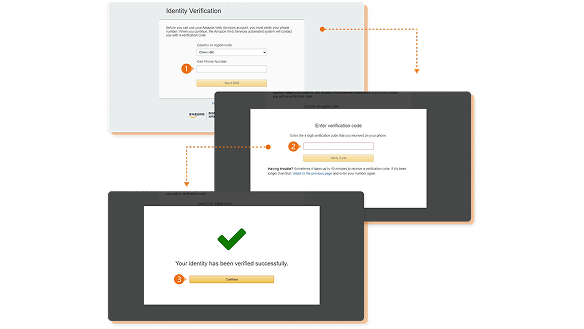
- Fill in here phone number
- Please enter the 4-digit verification code
- Please click to continue
Step 6
Choose an Amazon Web Services Support Plan
Select Support Plan
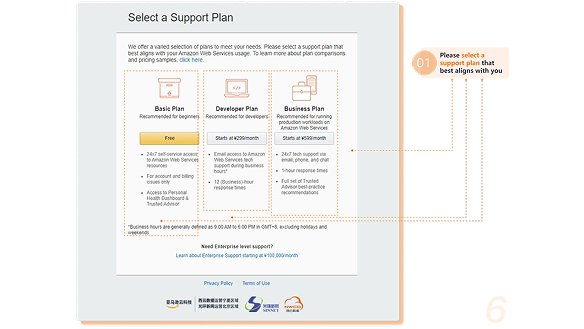
- Please select a support plan that best aligns with you
View Registration Results
According To The Status Of The Audit Result,It Is Divided Into The Following Three Scenarios
Scenario 1
The identity information you submitted has been verified
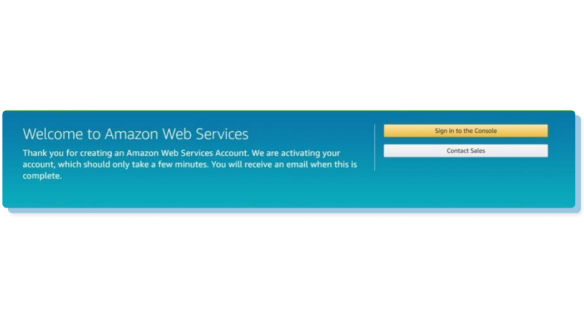
Your account will be activated directly, complete account registration. You can click the right button "Sign in to the Console" to enter the Amazon Web Services console.
Scenario 2
The identity information you submitted is still under review
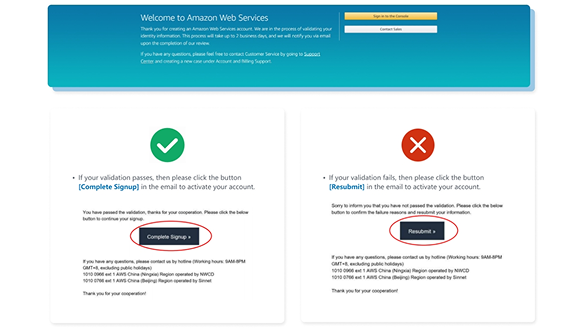
For pending validation, you will receive the validation result notification email from this email within 2 business days.
And you need to follow the guidance of the notification email to complete your signup.
Scenario 3
If the identity information you submitted fails to pass the review
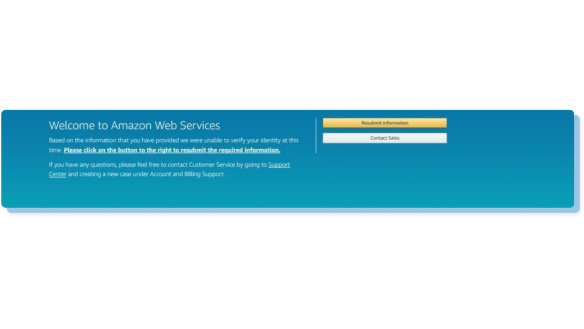
For the fail application, signup shows the below welcome page. You need to click the right button 'Resubmit information' on the page to resubmit the information and will receive the validation result notification email from this email within 2 business days.
Then you need to follow the instruction of this email to complete your signup.
FAQs
Open allPlease click the link, follow the prompts to continue your account registration
Kindly reminder: Please do not click "Already have an Amazon Web Services account? Sign in"
After completing the contact information in the second step, you will receive an email notification from this email , which contains your account ID, please check and find it in your registered Email.
activation immediately. If the console shows "We are in the process of validating your identity information", you will receive verification result within two working
days. If your account passed verification, you can click "Complete Registration" in the notification Email to activate the account.
and resubmit it via the link in the notification Email; If your account completed registration, you can modify it on the "My Account" page.
You can follow below steps to complete a password reset:
- Please click the link enter the management console: https://console.amazonaws.cn/
- Click "Forgot password? “
- Fill in the Account ID, IAM user name and characters. (please note the capital or lowercase letters when filling in the IAM user name and characters);
- Click “Send email”;
- Check email from ”Amazon Web Services“ in your registered Email address, and it ends with @amazonaws.cn.
- After receiving the email, please follow the instructions in the email to reset your password within 1 hour, or the link will be invalid.