We use machine learning technology to do auto-translation. Click "English" on top navigation bar to check Chinese version.
Use the new SQL commands MERGE and QUALIFY to implement and validate change data capture in Amazon Redshift
Amazon Redshift has added many features to enhance analytical processing like
One familiar task in most downstream applications is change data capture (CDC) and applying it to its target tables. This task requires examining the source data to determine if it is an update or an insert to existing target data. Without the MERGE command, you needed to test the new dataset against the existing dataset using a business key. When that didn’t match, you inserted new rows in the existing dataset; otherwise, you updated existing dataset rows with new dataset values.
The
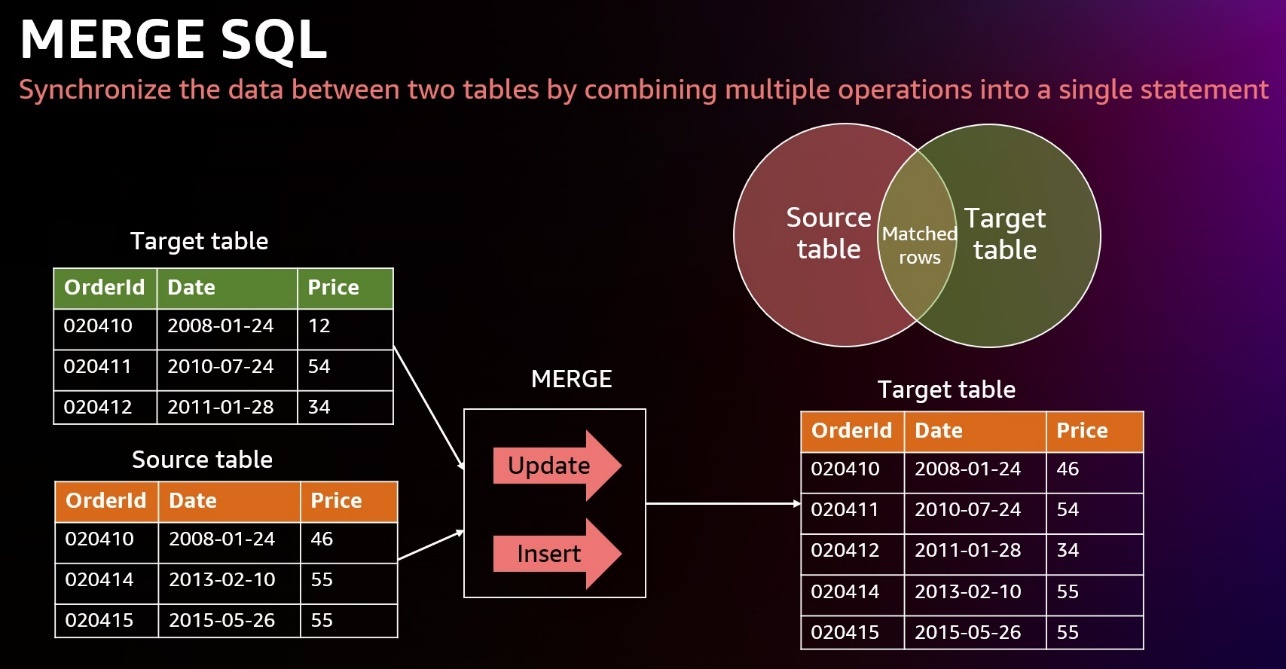
The
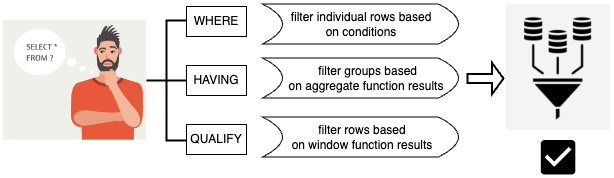
In this post, we demonstrate how to use the MERGE command to implement CDC and how to use QUALIFY to simplify validation of those changes.
Solution overview
In this use case, we have a data warehouse, in which we have a customer dimension table that needs to always get the latest data from the source system. This data must also reflect the initial creation time and last update time for auditing and tracking purposes.
A simple way to solve this is to override the customer dimension fully every day; however, that won’t achieve the update tracking, which is an audit mandate, and it might not be feasible to do for bigger tables.
You can load sample data from Amazon S3 by following the instruction
sample_data_dev.tpcds
, we create a customer dimension table and a source table that will contain both updates for existing customers and inserts for new customers. We use the MERGE command to merge the source table data with the target table (customer dimension). We also show how to use the QUALIFY clause to simplify validating the changes in the target table.
To follow along with the steps in this post, we recommend downloading the accompanying
Prerequisites
You should have the following prerequisites:
-
An
Amazon Web Services account -
A Redshift provisioned cluster or
Amazon Redshift Serverless endpoint -
tpcds data in thesample_data_devdatabase (which contains a customer table)
Create and populate the dimension table
We use the existing customer table under
sample_data_dev.tpcds
to create a
customer_dimension
table. Complete the following steps:
- Create a table using a few selected fields, including the business key, and add a couple of maintenance fields for insert and update timestamps:
-
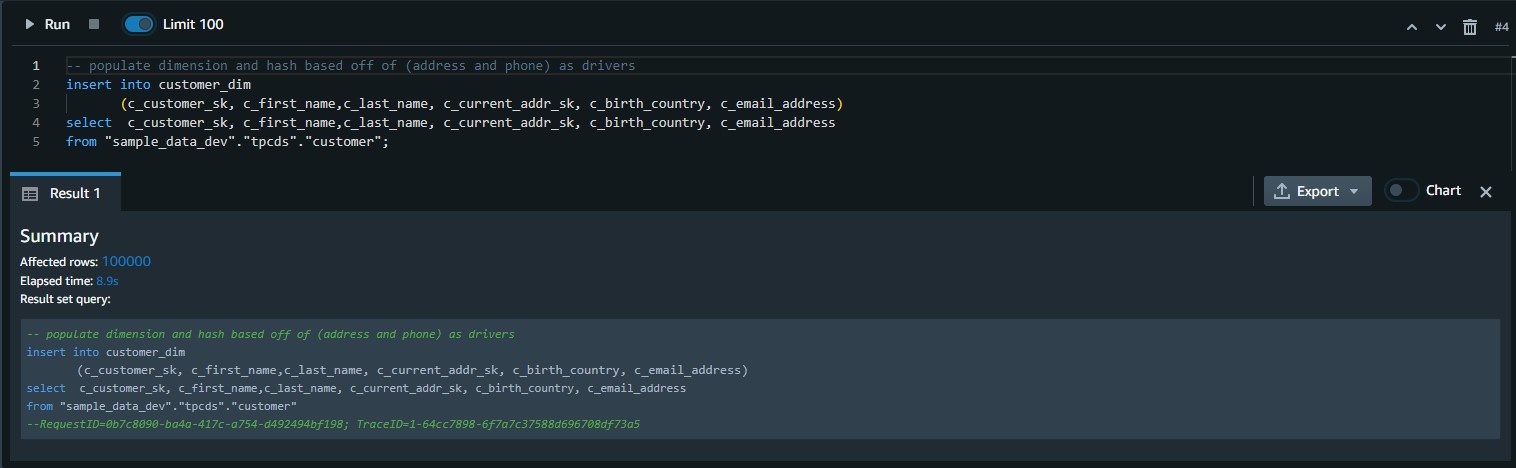
Populate the dimension table:
-
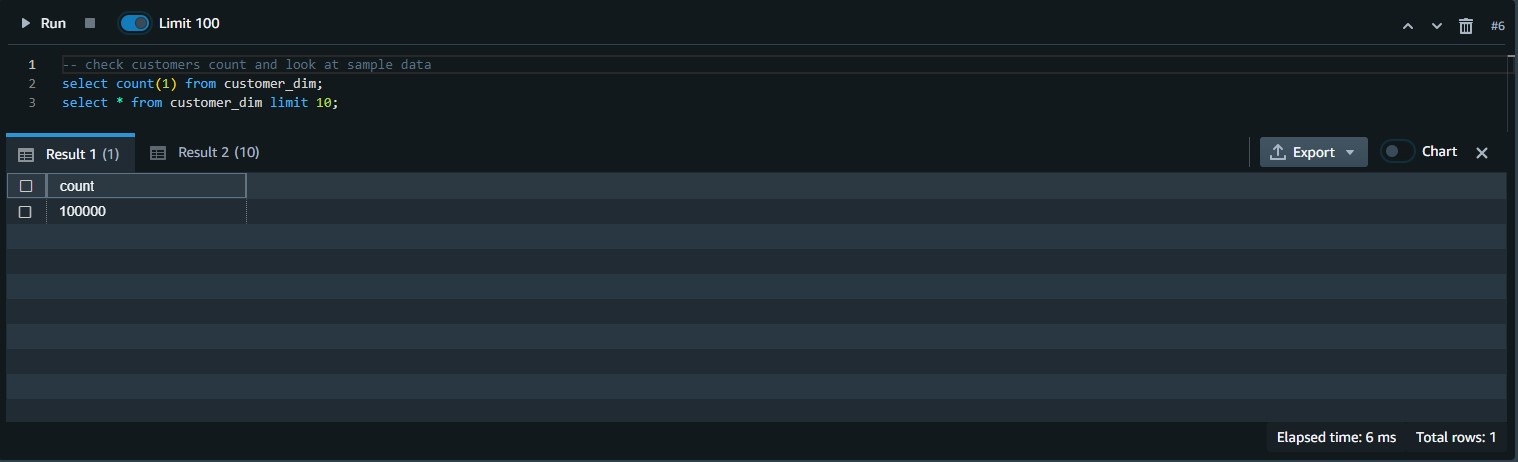
Validate the row count and the contents of the table:
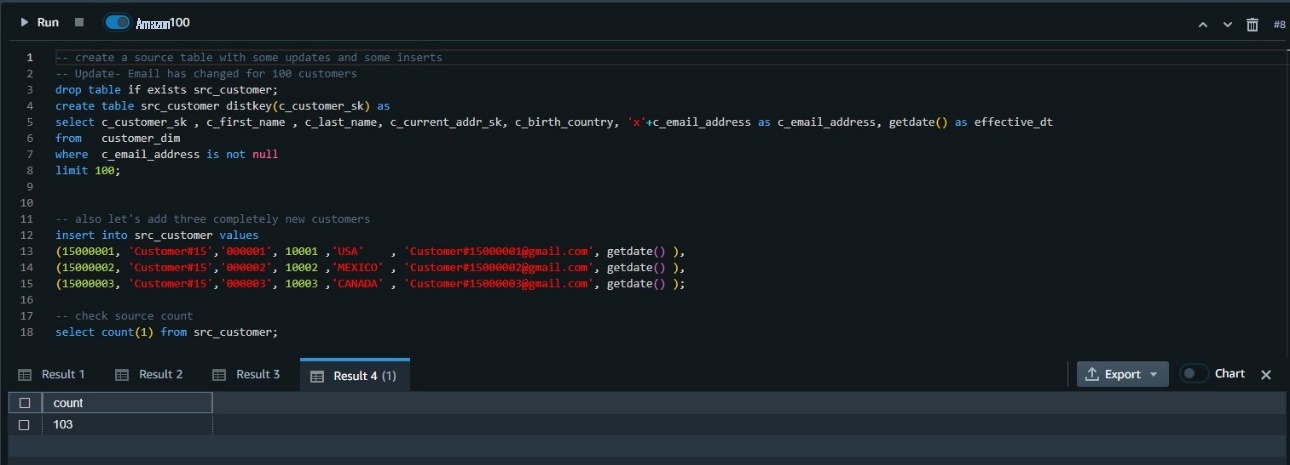
Simulate customer table changes
Use the following code to simulate changes made to the table:
Merge the source table into the target table
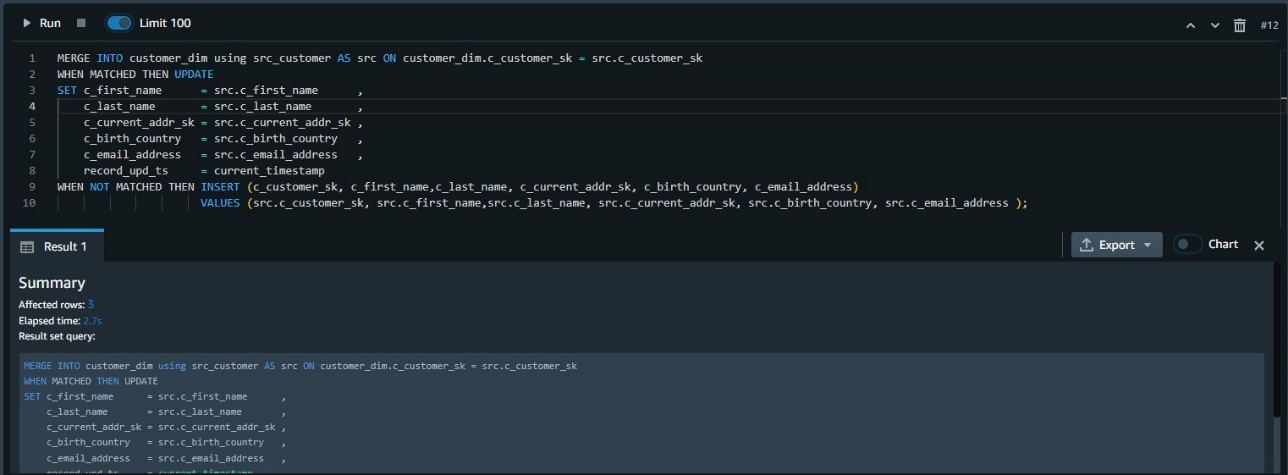
Now you have a source table with some changes you need to merge with the customer dimension table.
Before the MERGE command, this type of task needed two separate UPDATE and INSERT commands to implement:
The MERGE command uses a more straightforward syntax, in which we use the key comparison result to decide if we perform an update DML operation (when matched) or an insert DML operation (when not matched):
Validate the data changes in the target table
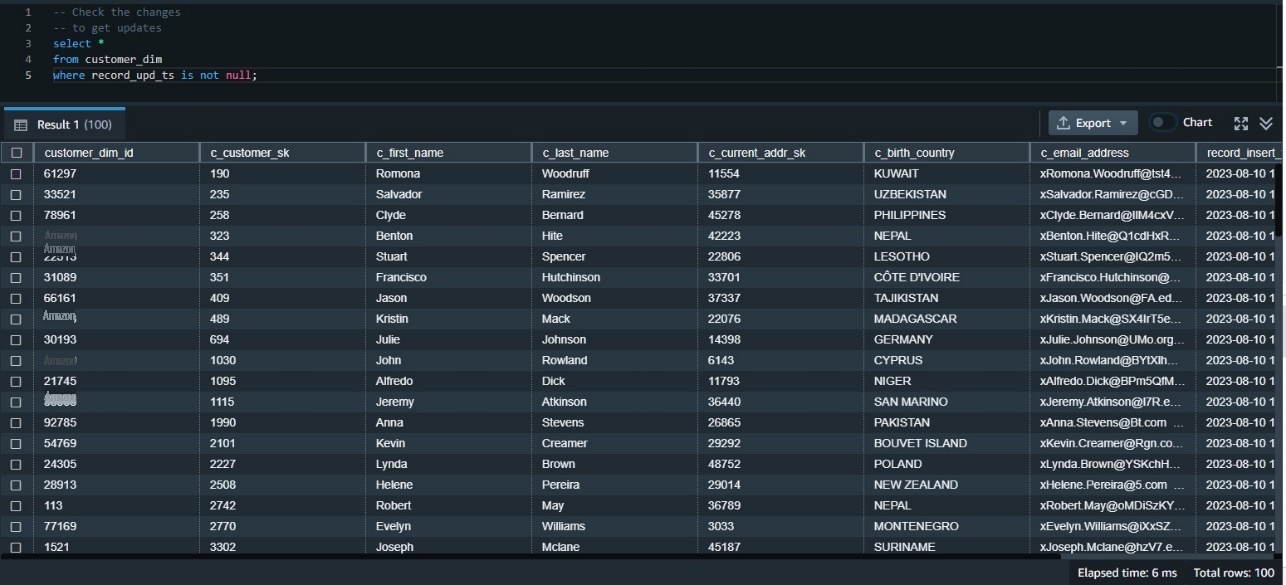
Now we need to validate the data has made it correctly to the target table. We can first check the updated data using the update timestamp. Because this was our first update, we can examine all rows where the update timestamp is not null:
Use QUALIFY to simplify validation of the data changes
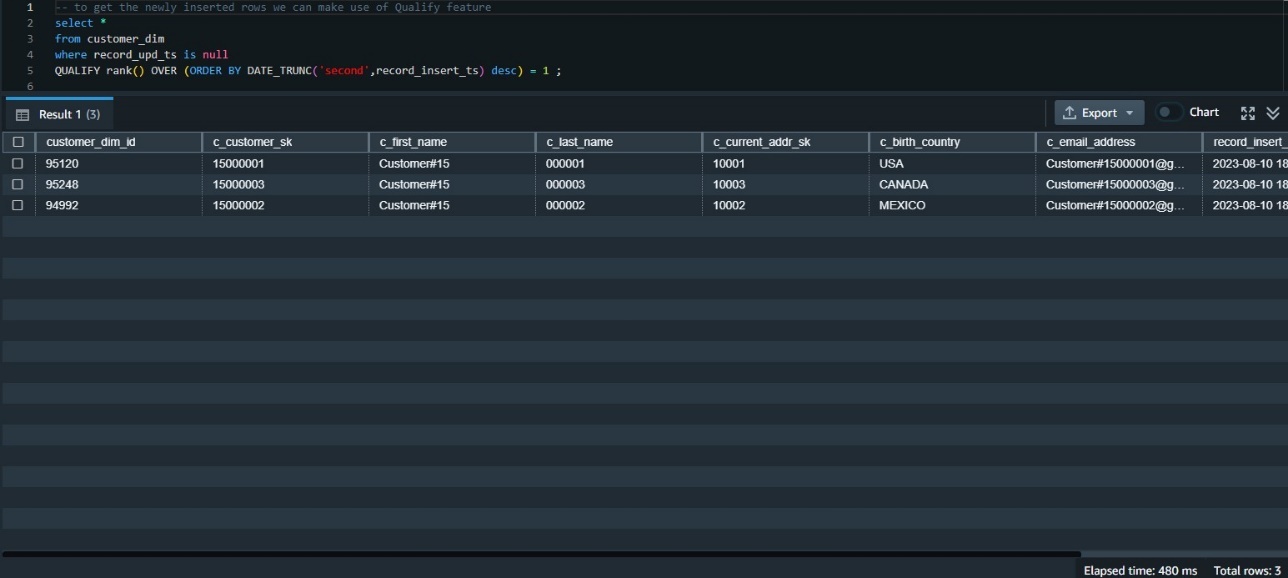
We need to examine the data inserted in this table most recently. One way to do that is to rank the data by its insert timestamp and get those with the first rank. This requires using the window function
rank()
and also requires a subquery to get the results.
Before the availability of QUALIFY, we needed to build that using a subquery like the following:
The QUALIFY function eliminates the need for the subquery, as in the following code snippet:
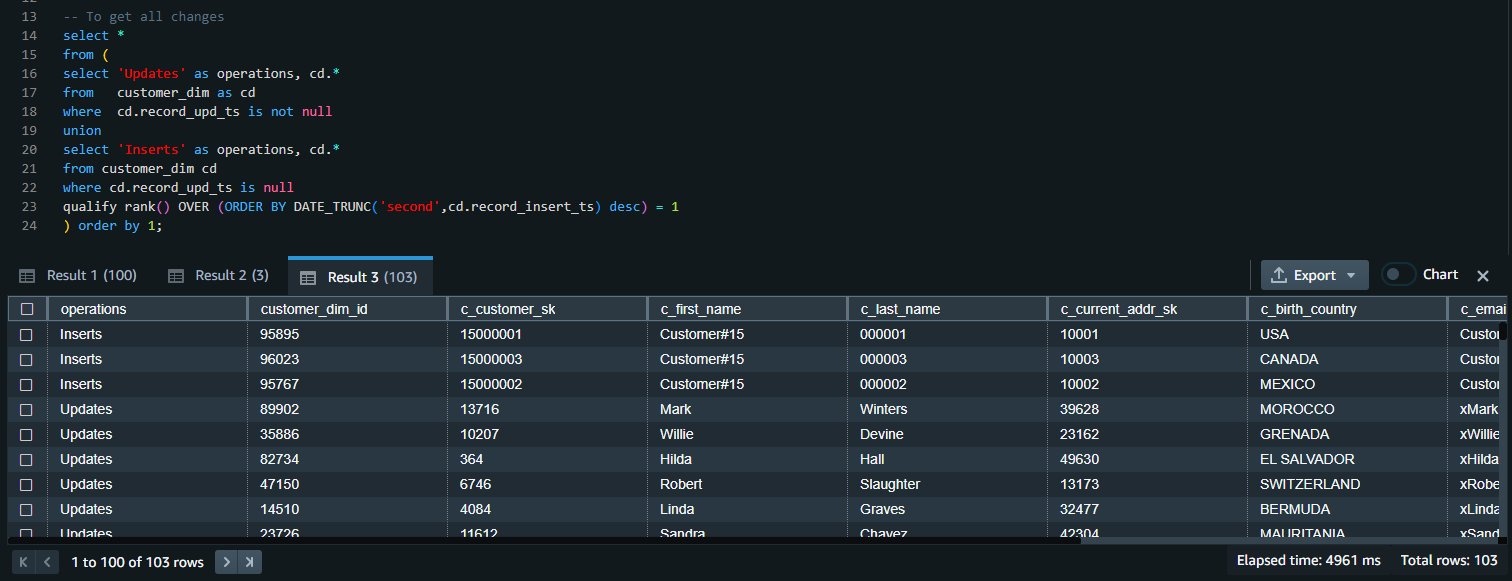
Validate all data changes
We can union the results of both queries to get all the inserts and update changes:
Clean up
To clean up the resources used in the post, delete the Redshift provisioned cluster or Redshift Serverless workgroup and namespace you created for this post (this will also drop all the objects created).
If you used an existing Redshift provisioned cluster or Redshift Serverless workgroup and namespace, use the following code to drop these objects:
Conclusion
When using multiple statements to update or insert data, there is a risk of inconsistencies between the different operations. The MERGE operation reduces this risk by ensuring that all operations are performed together in a single transaction. For Amazon Redshift customers who are migrating from other data warehouse systems or who regularly need to ingest fast-changing data into their Redshift warehouse, the MERGE command is a straightforward way to conditionally insert, update, and delete data from target tables based on existing and new source data.
In most analytic queries that use window functions, you may need to use those window functions in your WHERE clause as well. However, this is not permitted, and to do so, you have to build a subquery that contains the required window function and then use the results in the parent query in the WHERE clause. Using the QUALIFY clause eliminates the need for a subquery and therefore simplifies the SQL statement and makes it less difficult to write and read.
We encourage you to start using those new features and give us your feedback. For more details, refer to
About the authors



The mentioned AWS GenAI Services service names relating to generative AI are only available or previewed in the Global Regions. Amazon Web Services China promotes AWS GenAI Services relating to generative AI solely for China-to-global business purposes and/or advanced technology introduction.