We use machine learning technology to do auto-translation. Click "English" on top navigation bar to check Chinese version.
Query cross-account Amazon DynamoDB tables using Amazon Athena Federated Query
What if you have the need to allow other Amazon Web Services accounts to query your DynamoDB table? What if other accounts need to join data on your DynamoDB table with their data stored in data sources like Amazon CloudWatch, Amazon DocumentDB, Amazon Redshift, Amazon OpenSearch, MySQL, PostgreSQL connected with
This post will demonstrate Athena in an Amazon Web Services account accessing a DynamoDB table of another Amazon Web Services account by using the Athena cross-account federated query. It also explains deploying
Walkthrough
The solution has the following steps to demonstrate Athena cross-account federated query:
- Set up Athena federation – To deploy a Lambda function for the data source connector and connect it to a data source.
- Set up Athena cross-account federation – To set up IAM permissions for Athena cross-account federation.
- Test Athena cross-account federated query – To show a demo of how an Amazon Web Services account can share its DynamoDB table as an Athena data source with another Amazon Web Services account.
Prerequisites
For this walkthrough, you should have the following prerequisites:
- Two Amazon Web Services Accounts
- Amazon Web Services resources: Amazon Simple Storage Service (Amazon S3), Amazon Athena, Amazon DynamoDB, Amazon Web Services Lambda
Data source connectors
A data source connector is a piece of code that can translate between your target data source and Athena. Athena uses data source connectors that run on Amazon Web Services Lambda to run federated queries. You can think of a connector as an extension of Athena’s query engine.
Connectors use Apache Arrow as the format for returning data requested in a query, which enables connectors to be implemented in languages such as C, C++, Java, Python, and Rust.
Athena uses data source connectors that run on Amazon Web Services Lambda to run federated queries. Since connectors are processed in Lambda, they can be used to access data from any data source on the cloud or on premises that is accessible from Lambda
To use a connector in your Athena queries, deploy it to your account using one of the following ways:
-
Amazon Web Services Serverless Application Repository - Athena and Lambda consoles
This blog uses the
After you deploy data source connectors, the connector is associated with a catalog that you can specify in SQL queries. You can combine SQL statements from multiple catalogs and span multiple data sources with a single query. When a query is submitted against a data source, Athena invokes the corresponding connector to identify parts of the tables that need to be read, manages parallelism, and pushes down filter predicates. Based on the user submitting the query, connectors can provide or restrict access to specific data elements.
Architecture
-
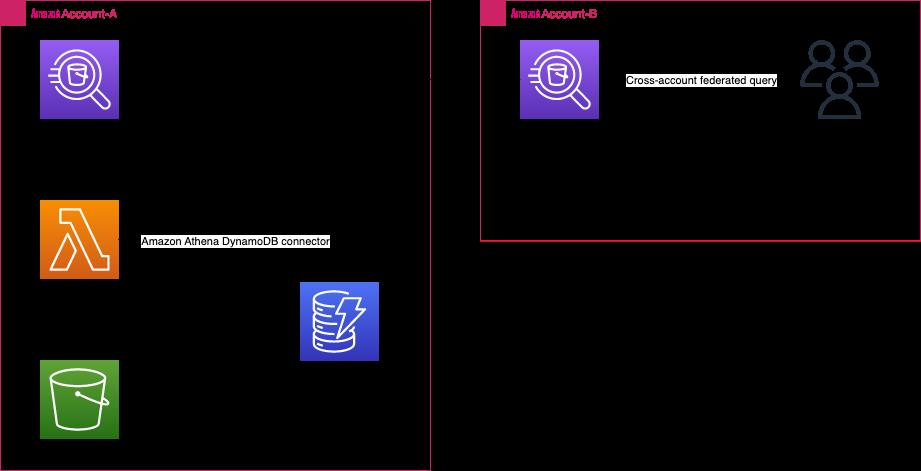
Amazon Web Services Account-A has a DynamoDB table called
Music. - Account-A has an Athena data source connector to federate into DynamoDB.
- Amazon Web Services Account-B has Analysts who need to query the DynamoDB table.
- Account-A is sharing the Athena data source with Account-B by using Athena cross-account federated query.
The following figure shows Amazon Athena cross-account federation for Account-B to access DynamoDB in Account-A.
To demonstrate the Athena cross-account federation, create a sample DynamoDB table called
music
in Account-A. Follow the instructions at
Music
and load
thesample
data.
Set up Athena federation
Preparing to create federated queries is a two-part process: deploying a Lambda function for the data source connector and connecting the Lambda function to a data source. For more details, see
Deploy AthenaDynamoDBConnector using Amazon Web Services Serverless Application Repository
- Sign in as an administrator to Amazon Web Services Account-A.
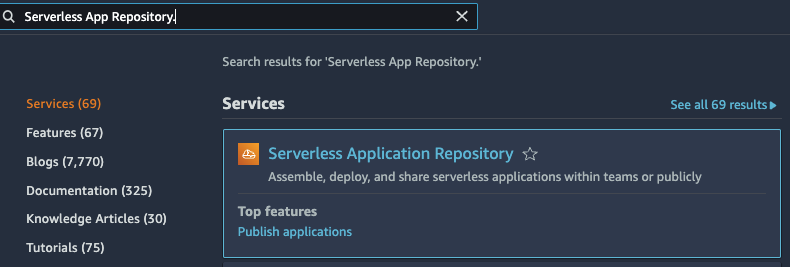
- Open the Serverless Application Repository .
- In the navigation pane, choose Available applications .
- Select the option Show apps that create custom IAM roles or resource policies .
-
In the search box, type the name of the connector
AthenaDynamoDBConnector.
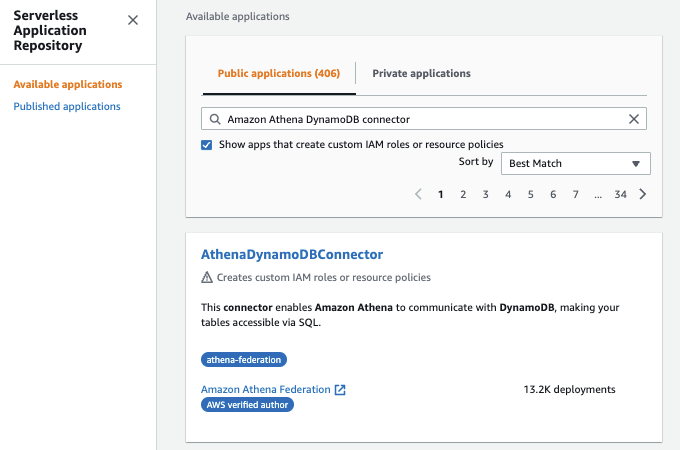
- Choosing a connector opens the Lambda function’s Application details page in the Amazon Web Services Lambda console.
-
On the right side of the details page, for
Application settings
, fill in the required information.
-
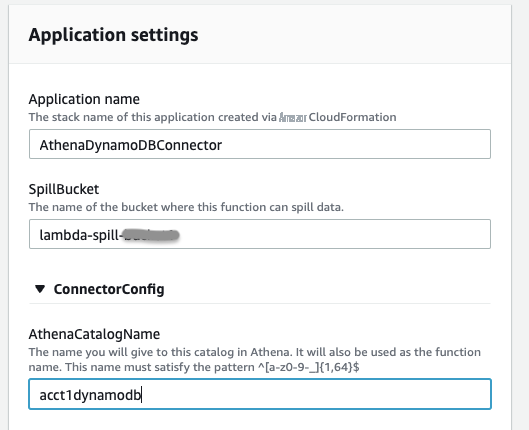
Application name
– Name of Amazon Web Services CloudFormation Stack to deploy the connector:
AthenaDynamoDBConnector. -
AthenaCatalogName
– It is the catalog name to create in Athena. It is also the name of the Lambda function. Give it in lowercase:
acct1dynamodb. -
SpillBucket
– Specify an existing S3 bucket (
spill-bucket) in your account to receive data from any large response payloads that exceed Lambda function response size limits.
-
Application name
– Name of Amazon Web Services CloudFormation Stack to deploy the connector:
- Select I acknowledge that this app creates custom IAM roles and resource policies . For more information, choose the Info link.
- At the bottom right of the Application settings section, choose Deploy .
- Serverless Application Repository will create an Amazon Web Services CloudFormation stack to deploy the connector.
-
When the deployment is complete, you will see the Lambda function in the
Resources
section of the Amazon Web Services CloudFormation stack. Note down the Lambda function name.

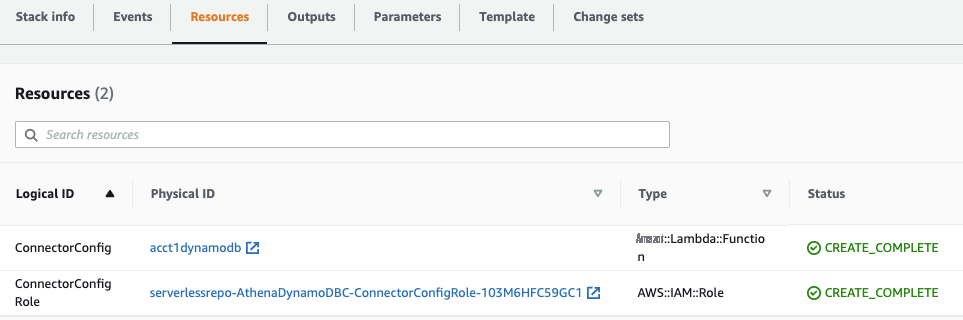
Connect Athena to the data source
- Go to Athena console in Account-A.
-
Choose Data sources. Click Create Data source.

-
In Choose data source, search for Amazon DynamoDB and select it.
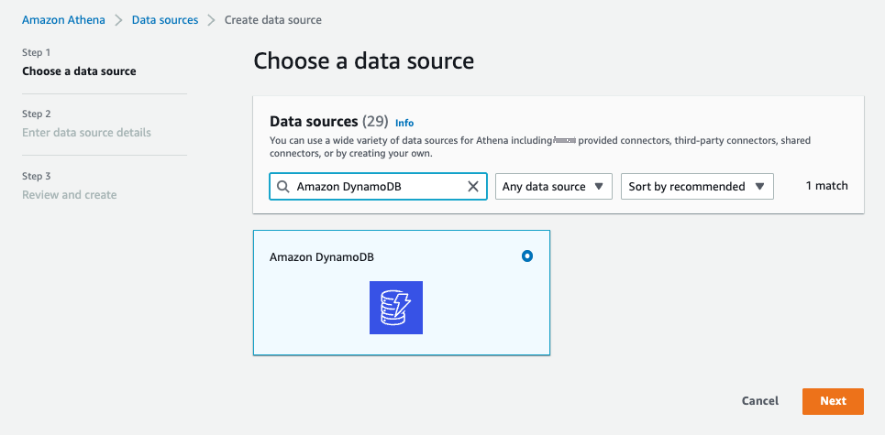
-
In
Data source details
, give a
Data source name
acct1dynamodb
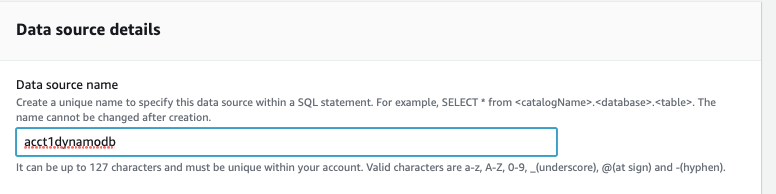
-
For
Lambda function
in the
Connection details
section, choose the name of the function
acct1dynamodbfrom the dropdown.
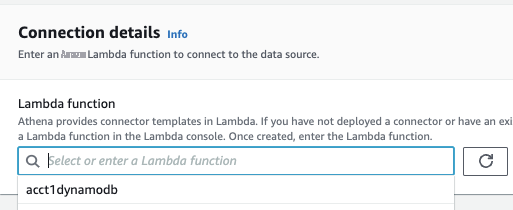
-
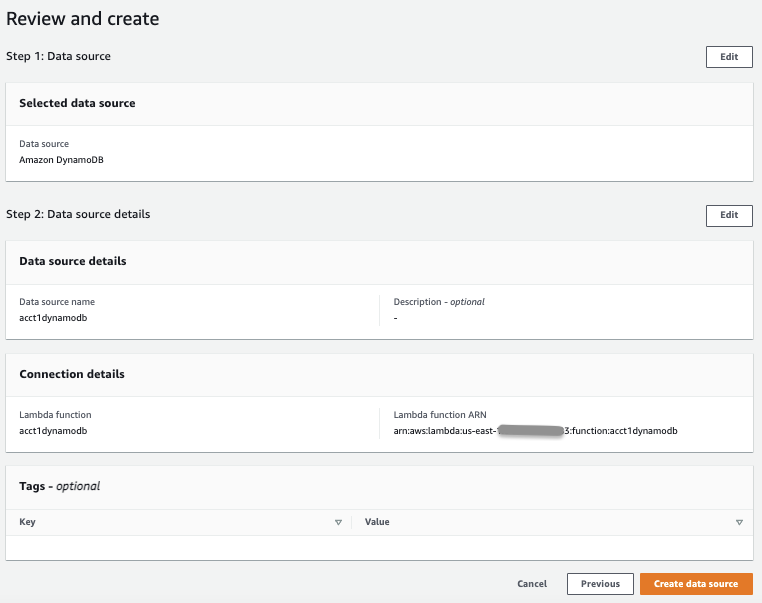
On the
Review and create
page, review the data source details, and then choose
Create data source
.

-
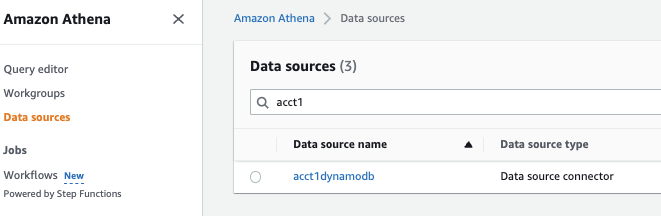
You will see the data source
acctdynamodbin the Data sources .
-
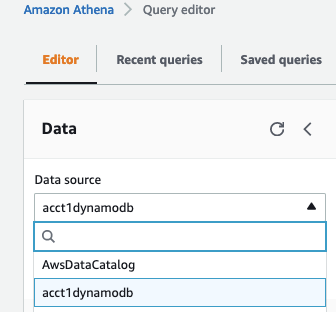
Go to
Query editor
. Choose the
Data Source
acct1dynamodbfrom the dropdown.
-
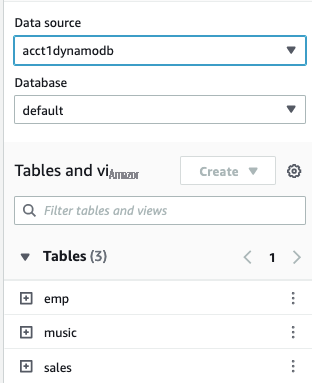
You will see all the tables in the shared data source.
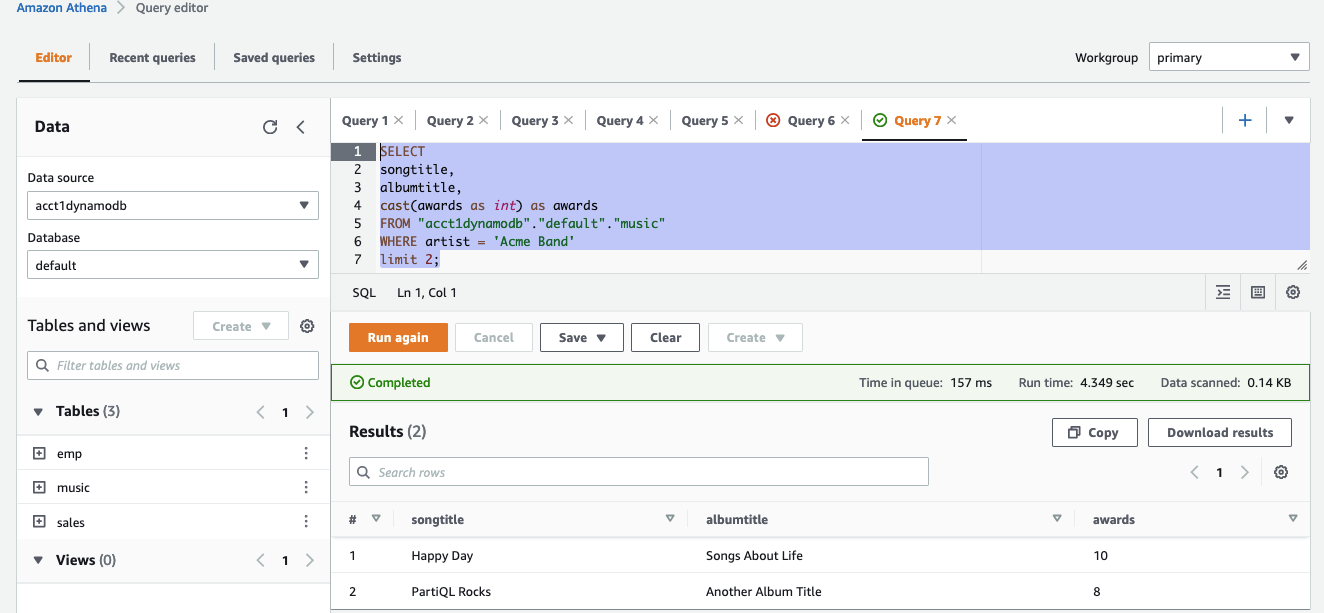
- Run the following SQL in Athena Query editor
-
Verify Athena federation works.
Set up Athena cross-account federation
In Account-A: Set up IAM permissions for cross-account
- Sign in as an administrator to Account-A.
- On the S3 spill bucket (of the Lambda function), grant GetObject and ListBucket permissions to the IAM user analyst of Account-B.
Note : Replace Account-B-id with your actual Amazon Web Services cross-account id to which you want to share the DynamoDB table. Replace spill-bucket with your actual S3 bucket in Account-A.
-
Grant I
nvokeFunction
on Lambda function
acct1dynamodbto IAM user analyst of Account-B.
Note : Replace Account-A-id with your actual Amazon Web Services account id where you have the DynamoDB table. Replace Account-B-id with your actual Amazon Web Services cross-account id to which you want to share the DynamoDB table.
-
Go to the Lambda function
acct1dynamodb. Choose Configuration and Permissions .
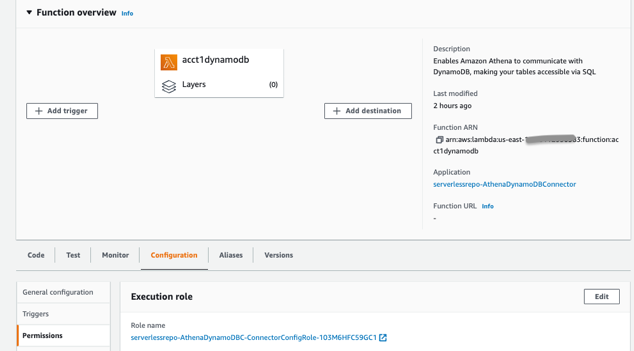
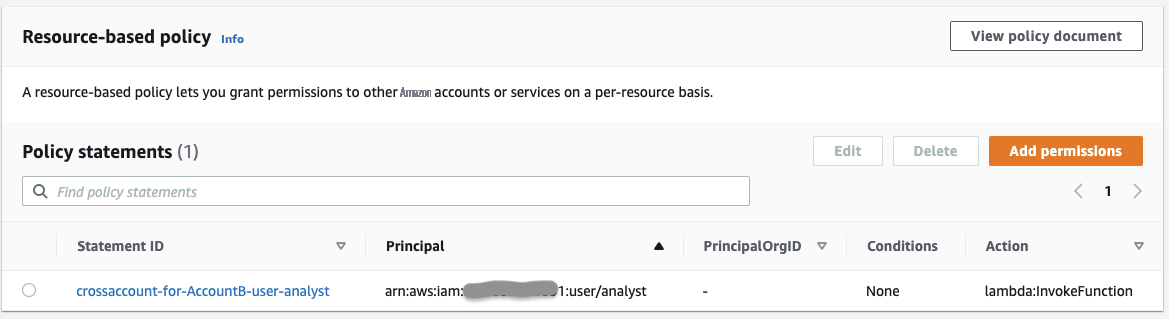
- Go to Resource-based policy and Add permissions .
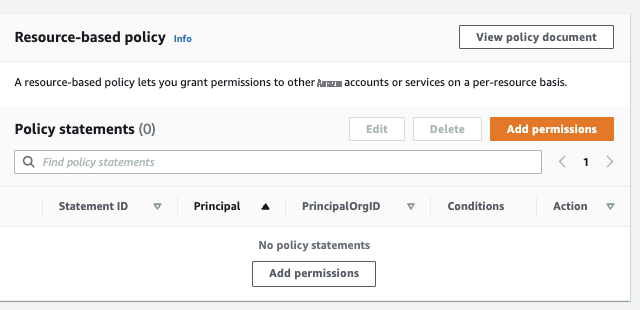
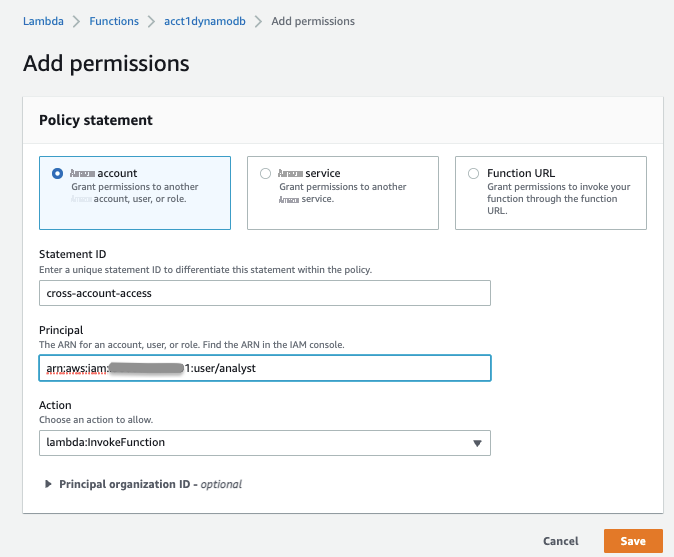
When you save the above permissions, you can see them under Policy statements in Resource-based policy of the Lambda function.
In Account-B: Set up IAM permissions for cross-account
- Sign in as an administrator to Amazon Web Services Account-B.
-
Create
IAM role calledAthenaCrossAccountFederated-Account-A-idfor Account-A to assume. Add the following inline policy to the role.
Note: Replace Account-B-id with your actual Amazon Web Services cross-account id to which you want to share the DynamoDB table.
-
Grant permission to the IAM user analyst to invoke the Lambda function
acct1dymanodbof Account-A
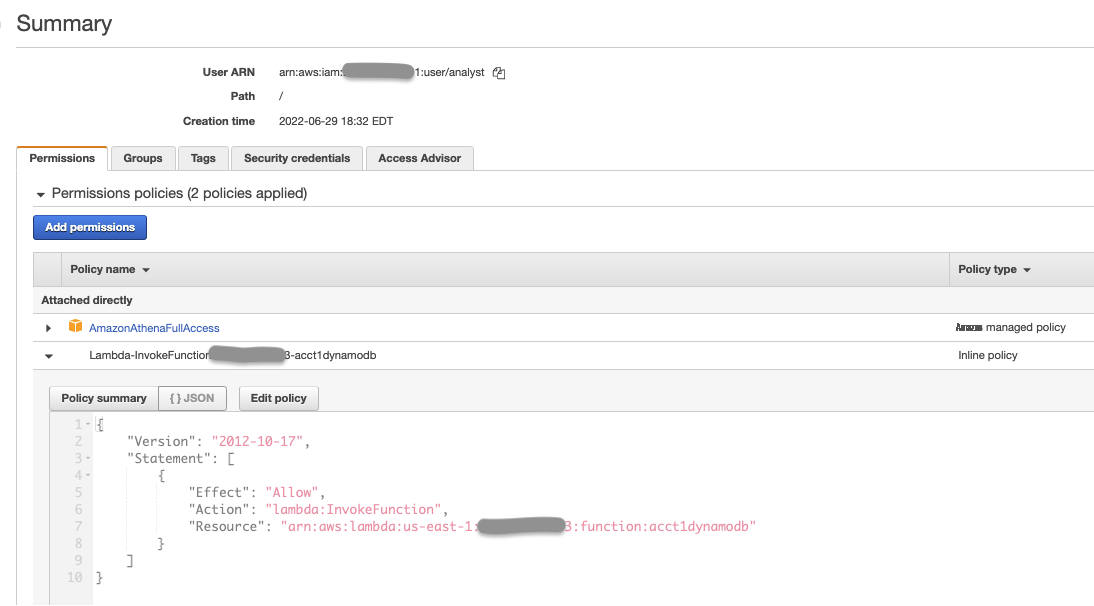
Note: Replace Account-A-id with your actual Amazon Web Services account id where you have the DynamoDB table.
Share the Athena Data source with Account-B
After the permissions are in place, you share a data connector in your account (Account-A) with another account (Account-B). Account-A retains full control and ownership of the connector. When Account-A makes configuration changes to the connector, the updated configuration applies to the shared connector in Account-B.
- Sign in as an administrator to Account-A.
-
On Athena, go to
Data sources
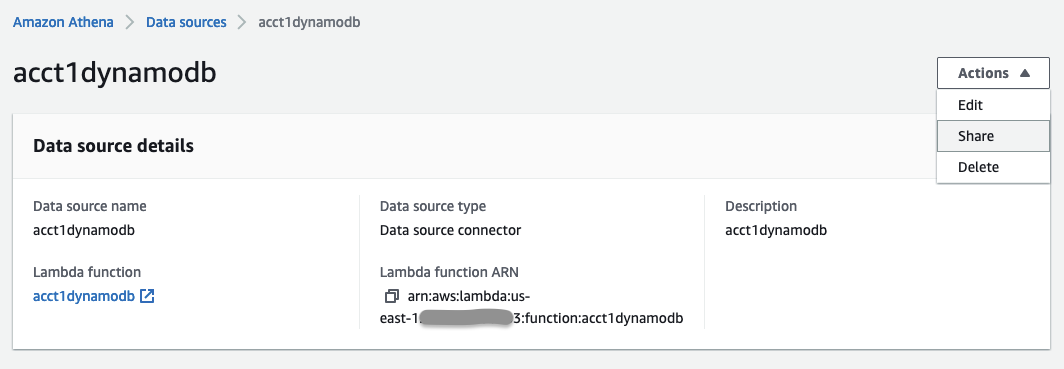
, choose data source
acct1dynamodbyou want to share. Go to the Share option in the top right corner.
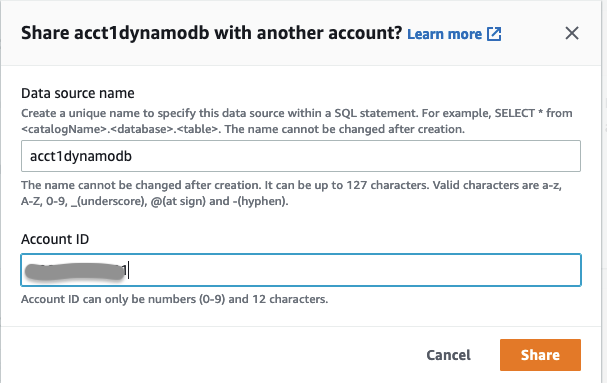
- For Account ID , enter the Account-B-id to share your data source with Account-B and click Share .

Test Athena cross-account federated query: Access the shared data source from Account-B
- Sign in as IAM user analyst to Account-B.
-
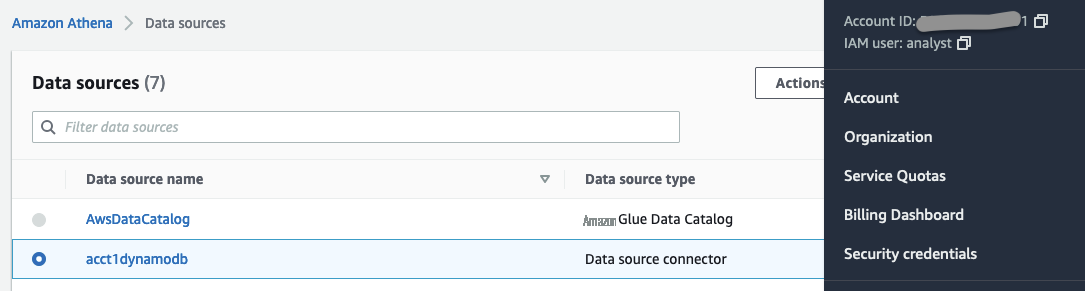
In Athena, go to
Data sources
. You will see the data source
acct1dynamodb.
-
Go to
Query editor
. Choose the
Data Source
acct1dynamodbfrom the dropdown.
- You will see all the tables in the shared data source.
- Run the following SQL in Athena Query editor
- Athena cross-account federated has worked! This validates that user analyst in Account-B can see the data of the DynamoDB table of Account-A.
Clean up
To avoid incurring future charges, delete the following resources that were provisioned for this demo:
- S3 spill bucket used in Amazon Web Services Lambda
- Lambda function used for the data source connector
- Sample DynamoDB table
Conclusion
In this post, we saw how you can access a cross-account DynamoDB table using Athena Federated Query to query the data in place. You can execute a single SQL query to join this data across data sources like Amazon CloudWatch, Amazon DocumentDB, Amazon Redshift, Amazon OpenSearch, MySQL, PostgreSQL, Oracle, SQL Server, HBase, Redis, BigQuery, Snowflake, Teradata with
About the author

The mentioned AWS GenAI Services service names relating to generative AI are only available or previewed in the Global Regions. Amazon Web Services China promotes AWS GenAI Services relating to generative AI solely for China-to-global business purposes and/or advanced technology introduction.